For many years, the ISA Forum has served as an integral resource for members in obtaining expert advice and getting answers on tricky appraisal questions. It houses a wide range of discussion topics, with new discussions
and questions posted daily.
Back in 2010, Todd Sigety, ISA CAPP, compiled a four-part screencast
series on how to use the Forum. If you aren’t yet using the Forum to its
fullest, take a look at these posts for a quick refresher. (Please note that these screencasts were done before ISA revamped the website and ISA logo. While those have changed, the functions of the ISA Forum have not.)
When I agreed to head up the ARC at ISA, I was told, there
really isn’t too much you have to do.” I
took “not having to do too much” to the next level and really haven’t done
anything !!! I think that promise was really was a ploy to have a live body
(me) head this committee...and so, here I am FINALLY reaching out to you, the
ISA -ARC members. But many of you are probably thinking “IS SHE ALIVE?”
A little history….
For many
years, I took any and ALL antique seminars/classes that I could get my hands
on. My library is overflowing with scholarly books on antique porcelain and
such. I still have my wood blocks that the North Texas Chapter provided to the Identifying
Wood class that I took several years ago which I would bring to my
various appraisal sites trying to figure out whether that sideboard is oak or
cherry!
Recently, I
was called in to a very prominent family’s home in my town in which the elderly
mother was moving out of state to be closer to her family and the family was trying
to decide what exactly what should go where. It had been awhile since I had
seen such a collection of Period English and American antiques in place.
Change……
And why??
Because I joined a co-op with 3 other women in which we buy and sell (mostly vintage)
decorative objects and furniture.
And I realized that there was an entire century of tchatckies and furniture that I had
overlooked and frankly disregarded while
I was studying the world of antiques. And boy did I have to catch up!!There is
a whole world of Geodes out there!! Who knew?? But seriously, I have had to do
my homework to study the works of Adrian Pearsall and Milo Baughman.
I don’t
mean to have this blog be a blog about me. I think my point is
there is always something to learn. My appraisal practice and my antiques
business hasn’t gone down the commode if you will, I just appraise and sell
different things. And I am OPEN to the change. And you should be too.
In
conclusion, as the Allstate man on TV says, you are in good hands. ISA is
stronger and better than ever and we all should feel proud to be a part of a
CHANGED and CHANGING organization. If you can relate to what I am saying please
post or respond to me. If you disagree, well OK, post or respond to me. I look
forward to hearing from you.
As many of our readers know, ISA not only has a brand new website, but has a fantastic new Membership Forum as well. This new Forum is much more robust and user friendly; we’d like to take you on a quick tour…
Once logged into the Forum, you will be able to read new topic postings, search previous posts, post topics and much more.
Subscribing to the Forum
To subscribe to a specific Forum (Education, Requests for Help, Appraisal Theory and Practice, Open Discussion) select the desired Forum and then select “watch this forum for new topics”. If you would like to be updated when new posts are made to that Forum, select “watch this forum for new posts”.
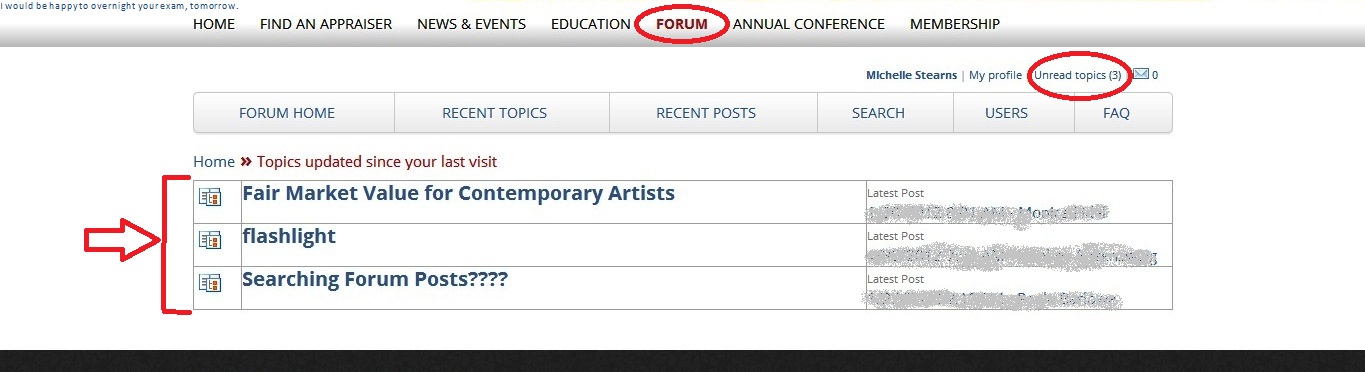
Another great feature of the Forum is your ability to see which topics have been updated, since you last logged on. These can be viewed by selecting “unread topics”; from there a list of new updates is populated.
How to Unsubscribe
If you would no longer like to receive updates on specific Forum topic and post updates, you can simply unsubscribe. To do this, select “My profile”, then “My subscriptions”. This is where you can unsubscribe to specific topics and posts.
Posting on Forum
To post on the Forum, select the specific forum and then choose “new topic”. This brings you to the area where you can draft your post; you have the ability to add links, images, etc. When you have completed your draft you can preview what it will look like, prior to posting. Once, you are satisfied with the post, select “add message” to post the message for other Forum users to see.
Frequently Asked Questions
The FAQ tab, within the Forum provides solutions to common user questions, at the click of a button.
Forum Search
There are multiple ways to look for posts within the new Forum: Recent Topics, Recent Posts and Search. The Search feature allows the user to set parameters for the results, whereas, Recent Topics and Recent Posts, list recently updated topics and newly added posts.
We hope that this brief tour helps you become more familiar with the New ISA Forum.
As many of our blog readers know, ISA has officially launched its brand new website! This exciting project has been in the works for some time and we are proud of all of the hard work and effort that has gone into this incredible new site; it not only provides up to date information on ISA as a Society, but also promotes the individual appraiser as well.
We would like to take you on a brief tour and introduce you to a few of the many exciting, newly refined aspects of our new website.
The ISA homepage, the central hub of information at a glance. Be sure to complete your member profile, upload an image and complete the spotlight section – our full members (ISA, AM, and CAPP) will be featured in the “Member Spotlight”, which rotates through completed member profiles. Utilize the new search function from the homepage to locate information within the website.
The new and improved ISA Forum, available to ISA Members only, is accessible with the same user name and password that is used to sign into the member side of the website. No more trying to remember two sets of user names and passwords for ISA. The new platform is user friendly allowing members to post questions, photos and comments on a specific thread.
Access details on the upcoming ISA Annual Conference by clicking on “Annual Conference”; this brings you to a dedicated page, where you can not only register, but find information on the program, hotel, specialty tours and more.
Are you curious about ISA Education? The Education page of the website allows you to learn more about the current education initiatives as well as register for upcoming courses.
Are you curious about the latest news from ISA? Navigate to the News tab of the website and view recent ISA Now blog posts, view ISA’s calendar by month, week or day, catch up on Member News Feeds and see the latest member updates.
These are just a few of the exciting new pages on the brand new ISA website. Visit our blog later this week for more tips and hints about discovering all the new and exciting features of the ISA website.
In an effort to expand ISA member benefits, we will now provide members with membership cards. These plastic cards will allow ISA members a “portable” manner to promote their level of professionalism by conveying their affiliation with the International Society of Appraisers.
ISA will provide these new cards along with the dues payment thank you letters. Members in good standing can use their new membership cards to identify themselves to potential and current clients, along with the general public, and show their involvement and level of designation with ISA. Each member card will have the member’s name, along with member number, designation and card expiration date.
Upgraded, professionally designed and printed membership certificates will now be available for purchase, along with an assortment of framing options. ISA has partnered with a renowned designer and producer of custom certificates and members will receive a brochure with the dues thank you letter that will provide information on obtaining a professional certificate and frame.
Ever confused over the types of acceptable report formats? Ever have to do an appraisal in an unusual or unique style due to the client's wishes? Ever done a government appraisal (not the IRS) and couldn't figure out what they really wanted?
This class is for you. It will review the 3 main appraisal reports and then introduce new types of formats including spread sheets, data management, charts, and official "laundry lists." We will also share ways of making your reports better and, at the same time, comply to both USPAP and ISA.
This is a chance for you to upgrade your products and get more work. In addition we will assist you in making your reports more readable, user friendly, and technologically state of the art.
This is a workshop. Friendly, suggestive, and helpful. It will not only take you to the next level of appraisal transmission, but enhance your work to a degree you thought not possible.
Register now. The class runs for 2 days at NIU in Naperville starting Sept. 30. 15 PDC's will be awarded.
To view the previous in depth ISA Forum post, click here.
This post and screen cast is the third in a series of four ISA Now posts about using the ISA Forum. This ISA Now post will detail how to upload an image to the ISA Forum. In the not to recent past, image uploading was very difficult and confusing process with the need for HTML code to be placed into the post. I originally thought ISA was going to have to wait for an update of the forum software for this to change. Luckily I was able to find a work around and the process has now become much easier with no HTML code necessary and a simple upload and browse button.
The first step to uploading an image to the ISA Forum is to navigate to the ISA Home Page at www.isa-appraisers.org. The next step is to click on the ISA Forum navigation tab. This is located in the left hand column of the ISA Home page. The Forum tab is the third from the bottom.
When you click on the navigation tab to the ISA Forum, the welcome page will load. By clicking on the Proceed to ISA Forum link you are also agreeing to the terms of use. Please read and become familiar with the ISA Forum terms of use.
Click on the Proceed to ISA Forum link and the forum log in page will load. Fill in the text boxes for your username and password, then click on the Log In button. The ISA Forum page will load. Then click on the desired forum for your message and image. In the screen cast we will be using the Members Forum by clicking on Members. Then click on the thread topic. I will use the General Announcements category. When the new page loads there is a list of all of thread topics for the General Announcements category.
If you are commenting on an existing thread click on that topic. If you are starting a new thread, look for the start a new thread link between the thread topics and the posts that are not connected or related to any particular thread. To post in the uncategorized area scroll down to the bottom of the page for the Add a Message text box.
When you are at the Add Your Message Here portion of the page, type your message as described in an earlier ISA Now post, and to add an image click on the Upload an Attachment button. When you click on Upload an Attachment a new browser window will open asking for a description, for the screencast I will call it test image, and then click on the browse button to select the file from your computer. Click on the file you wish to upload to the forum and the program will automatically insert the proper directory and file for the upload. Next, click on the upload button. The window will state file uploaded. Click on the close box in the new window.
The forum now has the directory for where the image is located on your hard drive. Click on preview/post this message button. Your post will not be in the preview window and the image should load. Next click on Post this Message and message with image will be uploaded to the ISA Forum.
Remember your images need to be either in GIF or jpeg format. Try to use smaller thumbnail size images otherwise the file may not upload. Also, remember that images are not delivered in the forum email distribution list. Users have to be on the forum to see the images.
I hope this short tutorial with screen cast will be helpful the next time you need to upload an image to the ISA Forum. For questions or help please contact me at toddsig01@gmail.com
This is the second in a series of four ISA News posts and screencasts on how to use the ISA Forum. this post deals with how to post to the ISA Forum.
Watch a video on how to post to Forum
The first step is to navigate to the ISA home page at www.isa-appraisers.org
In the left column is a group of vertical navigation tabs, click the third tab from the bottom for the ISA Forum. The Welcome to the ISA Forum page loads.
In the middle of the page is a gray text box, and that by clicking on Proceed to ISA Forum link you are agreeing to the terms of use.
Click proceed to forum and the Log in page loads.
Type your user name into the appropriate text box, then tab or click to the password text box and type in your forum password. Click the log in button.
The topics page now loads with four forums to select from, Members, Education, Resources and Public,
for our example we will click on the Members Forum
The members forum opens with a list of thread categories and click on the category that is most applicable to your post.
In the screencast, I will select conference announcements (keep visiting ISA Now for news about Conference in Nashville. There has been a lot of very positive feedback on timing, location and speakers).
After clicking the conference announcements link the individual threads or posts are displayed. Here you can post directly to the general Conference Announcements category (in the middle to the lower end of the page, just scroll down), or select a previous thread to add a comment or start a new thread. I will start a new thread.
Click start a new thread. The start a new thread button or link is situated in between the list of threads/archives and the posts which are not within a sub category.
Type in subject, then type your post into the message text box.
Click on the preview/post button and make any necessary changes.
Click preview again to review or change or click post this message when ready to post.
Our next ISA Now post and screencast will be on posting images to the ISA Forum.
The ISA Forum has long been one of ISA's strongest and most utilized benefits. It has facilitated ISA appraisers in gaining product knowledge, answering appraisal questions, and used as an outlet to vent and for updates on educational topics.
This ISA Now post with screencast is the first of a four part series about using the ISA Forum.
The four topics will be as follows:
How to sign up and change your password
How to post a discussion
How to posts a discussion with photos
How to sign up for auto email and make profile changes
How to sign up for the ISA Forum and change your password.
Many members already have a forum account, and surprisingly, many do not. ISA encourages all members to sign up and be active on the forum.
Watch a Video for Step-by-Step Forum Registration Instructions
The first step in gaining access to the ISA Forum is to open your computer's web browser and navigate to the ISA home page (http://www.isa-appraisers.org/). On the ISA home page, look on the left side of the screen for a group of vertical navigation tabs. Click on the third tab from the bottom for the ISA Forum.
That link will take you to the Forum welcome and terms of use page. If you are not familiar with the terms of use, please take a few minutes to read them. Note that by clicking on Proceed to ISA Forum hyperlink you agree to the terms of use.
Click on the Proceed to ISA Forum link. The ISA Forum log in page will appear.
For new users click on the Register for Account button, (it is just under the user name and password text boxes). When the registration page loads, complete the requested information. Some information is required, other information is optional. Required information is noted with a red asterisk.
Next is to select the various available forums, click the box for both the Education and Members (also distance if in the distance education program). Do not click on Directors or Presidents forums, although rarely used, they are for ISA board members and chapter presidents.
Complete optional personal profile information.
When done click on continue registration.
The site will return the following: "Your registration for a user account on this discussion board has been processed."
Within minutes you will receive an email stating your registration request is being processed. and that a second confirmation email will be sent after the registration review is complete.
Your forum registration request will then be reviewed ISA staff to ensure you are a member of ISA. The members forum is a member benefit, and only available to ISA members in good standing. After the staff review and approval, a second approval/confirmation email will be sent to you. This is an important email as you have to confirm through a hyper link your registration. If you have not heard of the status of your application within a few days, contact the ISA office at (312) 981-6778 .
The approval/confirmation email will request you click a link to activate your new forum account. If you do not click the link, your forum registration will not be complete. Make sure you check your email for this confirmation email and to click the link. Again, if you do not click the link in this email, your forum registration will not activate. Most of the account errors for new accounts are due to not finishing the registration process through this email and hyperlink.
After clicking the link in the approval/confirmation email, your browser will open a window to enter the password you originally used when setting up the account. When entered it will take you to the ISA Forum log in page to enter your user name and re-enter your password. After entering, click log in, and you should now be at the Forum Topics page showing the Members Forum, Education Forum, etc. You will not be able to select the category and topic to read and post on the ISA Forum.
To change your password, go to the ISA webpage and click on the ISA Forum tab, click proceed to forum. In the left column is a tree view of folders, second from the bottom is edit profile. Click on that folder/link. The Profile Editor will appear. Enter your username and password and the profile editor page will load.
Watch a Video on How to Change Your Password
At the top of the profile editor page is a list of options, click on change your password (third option form the bottom. Enter your new password and reenter to verify. Then click save profile changes. The profile page will reload with a notation that profile changes have been successfully saved. That's all there is to it.